Identifying sources
opticam uses photutils to find sources in images. This notebook will demonstrate how to define source finders for use with opticam, as well as explain opticam’s default behaviour when no source finder is specified.
Test Image
First thing’s first, let’s open an image that contains some sources. For this example, I’ll use one of the images from the Basic Usage tutorial:
[1]:
from pathlib import Path

import opticam

out_dir = Path('out')

opticam.generate_observations(
    out_directory=out_dir / 'data',
    n_images=3,
    circular_aperture=False,
    )
[OPTICAM] variable source is at (131, 115)
[OPTICAM] variability RMS: 0.02 %
[OPTICAM] variability frequency: 0.135 Hz
[OPTICAM] variability phase lags:
    [OPTICAM] g-band: 0.000 radians
    [OPTICAM] r-band: 1.571 radians
    [OPTICAM] i-band: 3.142 radians
Generating observations: 100%|███████████████████████████████████████████████████████████████████████████████████████████████████████████████████████████████████████████████████████████|[00:00<00:00]
[2]:
from astropy.io import fits
import numpy as np
import os

files = os.listdir(out_dir / 'data')
file = files[0]

with fits.open(out_dir / 'data' / file) as hdul:
    print(repr(hdul[0].header))
    image = np.array(hdul[0].data)
    binning_factor = int(hdul[0].header['BINNING'][0])
SIMPLE  =                    T / conforms to FITS standard
BITPIX  =                  -64 / array data type
NAXIS   =                    2 / number of array dimensions
NAXIS1  =                  512
NAXIS2  =                  512
EXTEND  =                    T
FILTER  = 'r       '
BINNING = '4x4     '
GAIN    =                  1.0
EXPOSURE=                  1.0
DARKCURR=                  0.0
INSTRUME= 'OPTICAM '
RA      =                  0.0
DEC     =                  0.0
UT      = '2024-01-01 00:00:00'
[3]:
from astropy.visualization import simple_norm
from matplotlib import pyplot as plt

fig, ax = plt.subplots(tight_layout=True)

im = ax.imshow(
    image,
    norm=simple_norm(image, stretch="sqrt"),
    origin="lower",
    cmap="Greys",
    )

ax.set_xlabel("X")
ax.set_ylabel("Y")

plt.show()
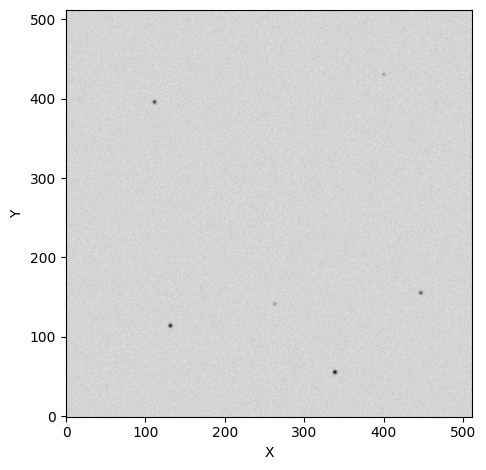
Default Finder
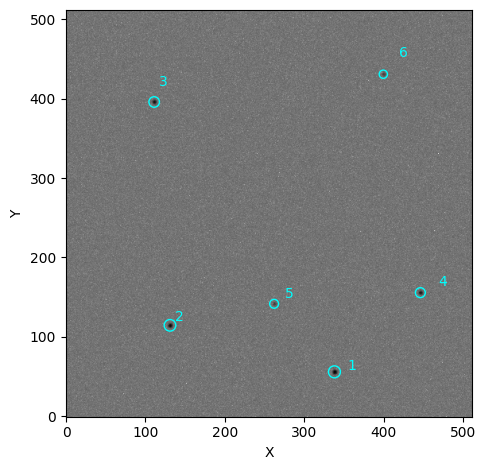
opticam implements two default source finders: Finder (default) and CrowdedFinder (better for crowded fields, but more expensive). Finder does not implement any source deblending, while CrowdedFinder does. Both of these source finders are wrappers for photutils.segmentation.SourceFinder with some added convenience tailored to OPTICAM.
Let’s use opticam.Finder to identify the sources in the above image:
[4]:
from opticam import DefaultFinder

from photutils.segmentation import detect_threshold

# default value for npixels is 128 // binning_factor**2
# default value for border_width is 1/16th of the image width
default_finder = DefaultFinder(npixels=128 // 4**2, border_width=image.shape[0] // 16)

default_tbl = default_finder(
    image,
    threshold=detect_threshold(image, nsigma=5),  # 5 sigma detection threshold
    )
print(type(default_tbl))
default_tbl.pprint_all()
<class 'astropy.table.table.QTable'>
label     xcentroid          ycentroid      sky_centroid bbox_xmin bbox_xmax bbox_ymin bbox_ymax area  semimajor_sigma    semiminor_sigma       orientation         eccentricity        min_value          max_value      local_background    segment_flux    segment_fluxerr     kron_flux      kron_fluxerr
                                                                                                 pix2        pix                pix                 deg
----- ------------------ ------------------ ------------ --------- --------- --------- --------- ---- ------------------ ------------------ ------------------- ------------------- ------------------ ------------------ ---------------- ------------------ --------------- ------------------ ------------
    1 337.84480165189865 55.979977184082095         None       335       341        53        59 39.0 1.5107688808197046 1.5053790360316874  -89.33433348518003 0.08439494160949072 151.59523628401223  678.2684818454657              0.0  11811.36588929729             nan  57371.00529309428          nan
    2 130.84048907555163 114.55982533726707         None       128       134       112       117 32.0 1.4625699854343226 1.3448010745068202  28.536501239957595  0.3931412209610042 156.54171635942447   600.862251405431              0.0  9532.699845036757             nan 50642.399308172215          nan
    5 110.92642854432354  395.6952378887367         None       108       113       393       398 26.0 1.3279099203705849 1.2633912067053437 -63.505335929262074 0.30791665245307387 154.42212054708278 506.22352742037447              0.0  7175.283906137943             nan  44371.29458606281          nan
    4 446.01913870395475 155.69464138687357         None       444       448       153       158 22.0  1.248527964359369  1.201188578624742  -52.68636767744579  0.2727538896288621 152.66031279442845  446.2741991150838              0.0  5711.547557593568             nan  40628.07819611517          nan
    3 261.91698011451064 141.65750407652664         None       260       264       140       143 13.0 1.1222595168044827 0.8779292796312469   38.45553806652847  0.6229178938517138 152.82082681128708 233.16769041366933              0.0 2419.2146696501154             nan 29522.251689609184          nan
    6   399.383458034625  430.6779459145309         None       398       401       429       432 13.0 1.0434091778713102 0.9811655281671985  -70.86241512102622 0.34021994954404694 151.41705132187604 209.50211387106594              0.0 2369.3092007181126             nan 29761.493914637376          nan
When calling a DefaultFinder() instance, an astropy.table.QTable instance is returned that is sorted in descending order of source flux. This is how catalogs are defined in opticam. We can use the table to visualise which sources have been identified and how their fluxes are ranked:
[5]:
from matplotlib.patches import Circle

fig, ax = plt.subplots(
    tight_layout=True,
    )

im = ax.imshow(
    image,
    norm=simple_norm(image, stretch="log"),
    origin="lower",
    cmap="Greys",
    )

for i, row in enumerate(default_tbl):

    xc = row['xcentroid']
    yc = row['ycentroid']

    ax.add_patch(
        Circle(
            xy=(xc, yc),
            radius=5 * row['semimajor_sigma'].value,
            facecolor='none',
            edgecolor='cyan',
            lw=1,
        )
    )

    ax.text(
        xc * 1.05,
        yc * 1.05,
        f'{i + 1}',
        color='cyan',
    )

ax.set_xlabel("X")
ax.set_ylabel("Y")

plt.show()
Custom Source Finders
Defining the Source Finder
Let’s now define a custom source finder. A custom source finder must be a callable that takes two parameters: image and threshold, and returns a QTable instance. image should be an NDArray containing the image data. threshold defines the threshold for source detection in ADU. The simplest way to define a custom source finder is by using the photutils.segmentation.SourceFinder class, which combines source detection and deblending:
[6]:
%%writefile custom_routines.py
from photutils.segmentation import SourceCatalog, SourceFinder

def custom_finder(image, threshold):
    finder = SourceFinder(
        npixels=128 // 4**2,  # same as DefaultFinder
        deblend=True,  # same as DefaultFinder
        nlevels=256,  # higher than DefaultFinder (more deblending)
        contrast=0,  # lower than DefaultFinder (more deblending)
        progress_bar=False,  # disable progress bar (same as DefaultFinder)
        )
    segment_img = finder(image, threshold)

    tbl = SourceCatalog(image, segment_img).to_table()
    tbl.sort('segment_flux', reverse=True)  # sort in descending order

    return tbl
Writing custom_routines.py
Due to compatibility issues, routines defined inside of IPython notebooks cannot be used by multiprocessing (used by opticam). To overcome this issue, we have used the %%writefile magic command to write our custom_finder() function to a temporary module called custom_routines.py, such that it can be imported by multiprocessing. This is required in Python \(\geq\) 3.14.
To understand how SourceFinder works, and what parameters can be weaked, I refer to the excellent photutils documentation: https://photutils.readthedocs.io/en/stable/user_guide/segmentation.html.
Under-the-hood, opticam.DefaultFinder also uses photutils.segmentation.SourceFinder, but here we have defined our custom source finder to use different parameter values for better source deblending (though deblending isn’t really needed for our example images). In addition to the different parameter values, our custom finder differs from DefaultFinder in that DefaultFinder automatically omits sources that are close to the edge of an image (where “close” is defined as 1/16th of
the image width, the same size as the default background pixels). For this example, this will not make a difference but it can be important in practise.
SourceFinder returns a SegmentationImage, but opticam assumes an astropy.table.QTable is returned. Here we have converted the returned SegmentationImage to a QTable by first converting it to a photutils.segmentation.SourceCatalog, and then calling the to_table() method of SourceCatalog.
Let’s now initialise this custom source finder and use it to identify sources in the above image.
[7]:
from custom_routines import custom_finder


custom_tbl = custom_finder(
    image,
    threshold=detect_threshold(image, nsigma=5),  # 5 sigma detection threshold
    )
[8]:
fig, ax = plt.subplots(
    tight_layout=True,
    )

im = ax.imshow(
    image,
    norm=simple_norm(image, stretch="log"),
    origin="lower",
    cmap="Greys",
    )

for i, row in enumerate(custom_tbl):

    xc = row['xcentroid']
    yc = row['ycentroid']

    ax.add_patch(
        Circle(
            xy=(xc, yc),
            radius=5 * row['semimajor_sigma'].value,
            facecolor='none',
            edgecolor='cyan',
            lw=1,
        )
    )

    ax.text(
        xc * 1.05,
        yc * 1.05,
        f'{i + 1}',
        color='cyan',
    )

ax.set_xlabel("X")
ax.set_ylabel("Y")

plt.show()
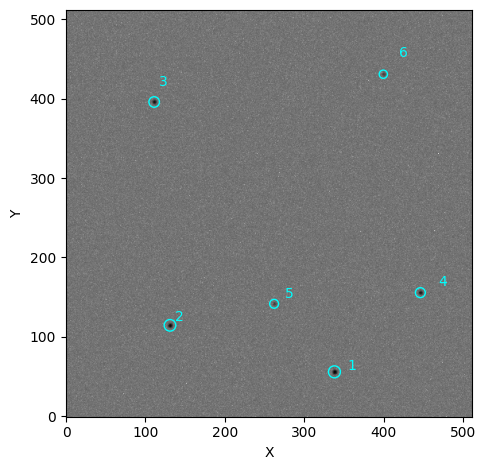
As we can see, we have once again recovered all six sources. Let’s now see how to use this custom source finder with opticam.Reducer:
[9]:
custom_reducer = opticam.Reducer(
    out_directory=out_dir / 'reduced' / 'custom_finder',
    data_directory=out_dir / 'data',
    finder=custom_finder,  # use custom source finder
)

custom_reducer.create_catalogs()
[OPTICAM] out/reduced/custom_finder not found, attempting to create ...
[OPTICAM] out/reduced/custom_finder created.
[OPTICAM] Scanning data directory: 100%|█████████████████████████████████████████████████████████████████████████████████████████████████████████████████████████████████████████████████|[00:00<00:00]
[OPTICAM] Checking instrument OPTICAM_MX.
[OPTICAM] OPTICAM_MX sucessfully passed all checks.
[OPTICAM] Parsing file headers: 100%|████████████████████████████████████████████████████████████████████████████████████████████████████████████████████████████████████████████████████|[00:02<00:00]
[OPTICAM] Binning: 4x4
[OPTICAM] Filters: 1:g, 2:r, 3:i
[OPTICAM] 3 1:g images.
[OPTICAM] 3 2:r images.
[OPTICAM] 3 3:i images.
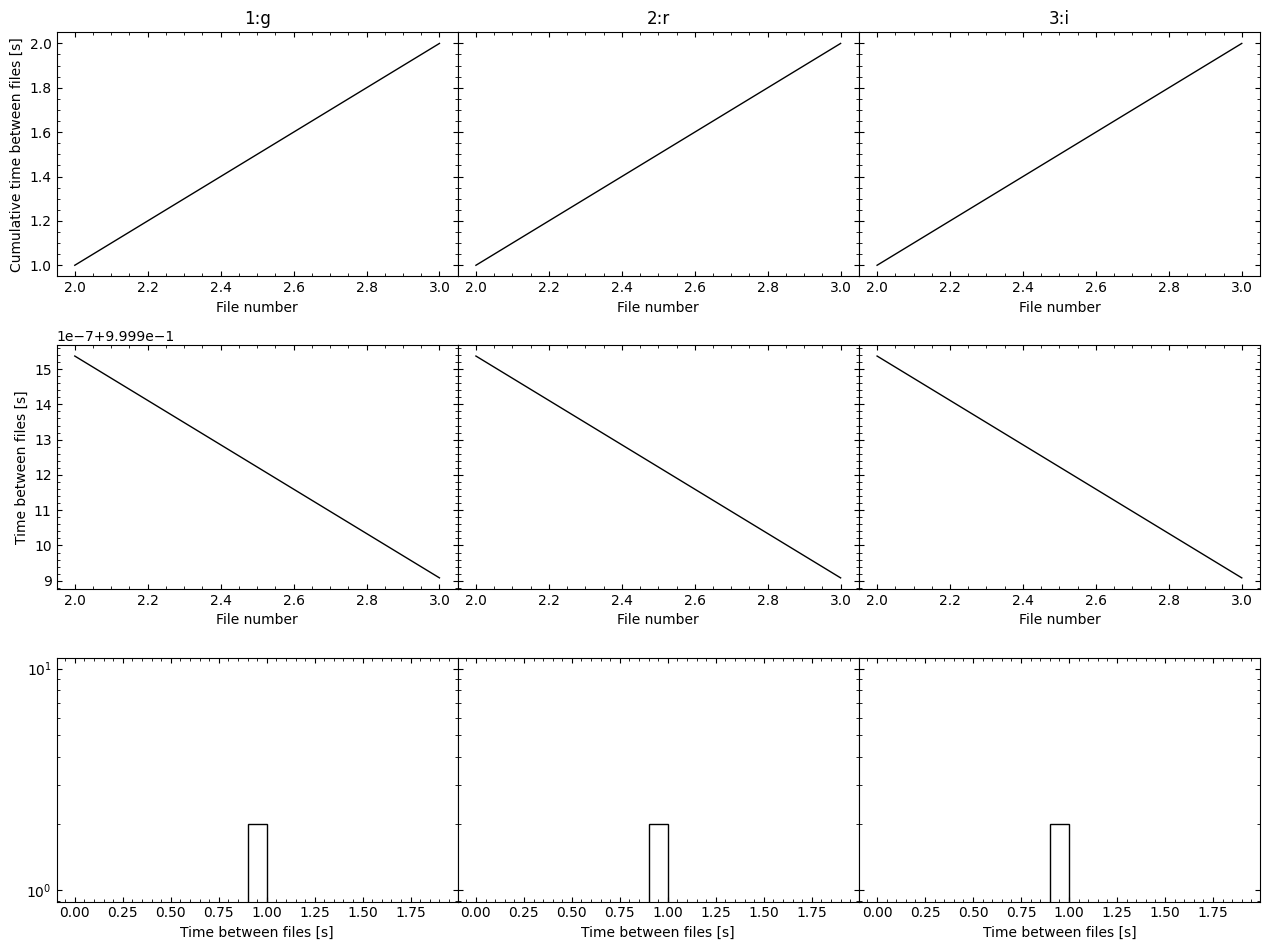
[OPTICAM] Plot saved to /tmp/tmpjktcyxx2/out/reduced/custom_finder/diag/header_times.pdf.
[OPTICAM] Creating source catalogs.
[OPTICAM] Aligning 1:g images: 100%|█████████████████████████████████████████████████████████████████████████████████████████████████████████████████████████████████████████████████████|[00:01<00:00]
[OPTICAM] [OPTICAM] Done.
[OPTICAM] [OPTICAM] 3 image(s) aligned.
[OPTICAM] [OPTICAM] 0 image(s) could not be aligned.
[OPTICAM] Aligning 2:r images: 100%|█████████████████████████████████████████████████████████████████████████████████████████████████████████████████████████████████████████████████████|[00:01<00:00]
[OPTICAM] [OPTICAM] Done.
[OPTICAM] [OPTICAM] 3 image(s) aligned.
[OPTICAM] [OPTICAM] 0 image(s) could not be aligned.
[OPTICAM] Aligning 3:i images: 100%|█████████████████████████████████████████████████████████████████████████████████████████████████████████████████████████████████████████████████████|[00:01<00:00]
[OPTICAM] [OPTICAM] Done.
[OPTICAM] [OPTICAM] 3 image(s) aligned.
[OPTICAM] [OPTICAM] 0 image(s) could not be aligned.
[OPTICAM] Plot saved to /tmp/tmpjktcyxx2/out/reduced/custom_finder/cat/catalogs.pdf.
[OPTICAM] Plot saved to /tmp/tmpjktcyxx2/out/reduced/custom_finder/diag/background.pdf.
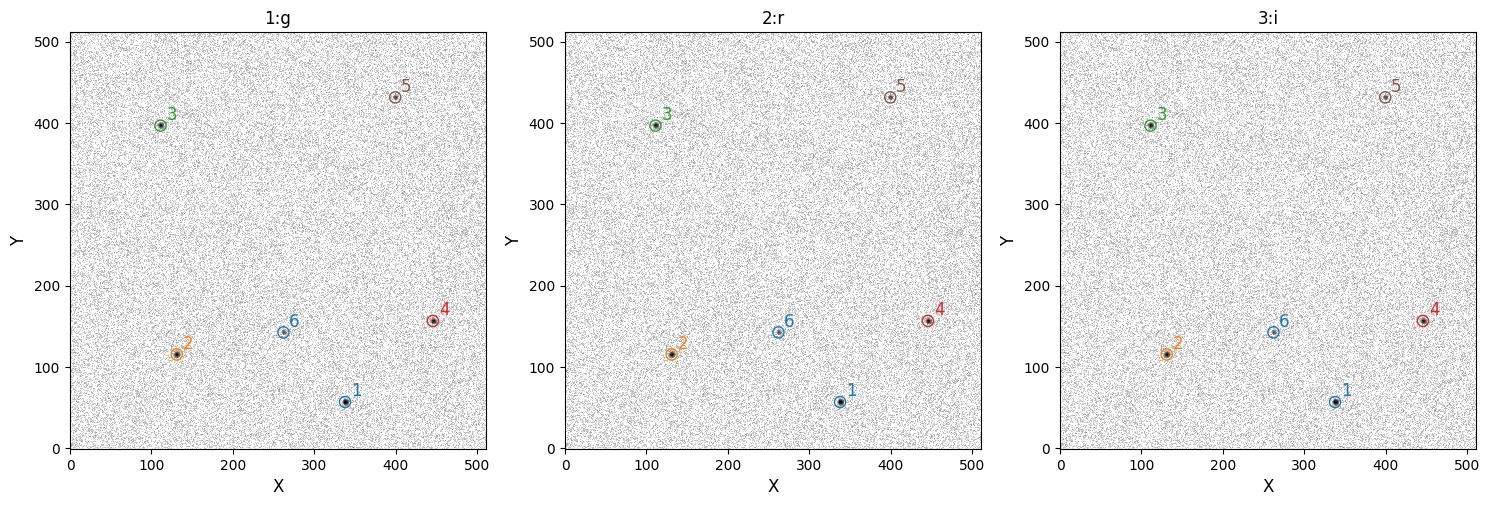
Our custom source finder has been used to successfully identify all six sources. Let’s compare this to using DefaultFinder:
[10]:
default_reducer = opticam.Reducer(
    out_directory=out_dir / 'reduced' / 'default_finder',
    data_directory=out_dir / 'data',
)

default_reducer.create_catalogs()
[OPTICAM] out/reduced/default_finder not found, attempting to create ...
[OPTICAM] out/reduced/default_finder created.
[OPTICAM] Scanning data directory: 100%|█████████████████████████████████████████████████████████████████████████████████████████████████████████████████████████████████████████████████|[00:00<00:00]
[OPTICAM] Checking instrument OPTICAM_MX.
[OPTICAM] OPTICAM_MX sucessfully passed all checks.
[OPTICAM] Parsing file headers: 100%|████████████████████████████████████████████████████████████████████████████████████████████████████████████████████████████████████████████████████|[00:02<00:00]
[OPTICAM] Binning: 4x4
[OPTICAM] Filters: 1:g, 2:r, 3:i
[OPTICAM] 3 1:g images.
[OPTICAM] 3 2:r images.
[OPTICAM] 3 3:i images.
[OPTICAM] Plot saved to /tmp/tmpjktcyxx2/out/reduced/default_finder/diag/header_times.pdf.
[OPTICAM] Creating source catalogs.
[OPTICAM] Aligning 1:g images: 100%|█████████████████████████████████████████████████████████████████████████████████████████████████████████████████████████████████████████████████████|[00:01<00:00]
[OPTICAM] [OPTICAM] Done.
[OPTICAM] [OPTICAM] 3 image(s) aligned.
[OPTICAM] [OPTICAM] 0 image(s) could not be aligned.
[OPTICAM] Aligning 2:r images: 100%|█████████████████████████████████████████████████████████████████████████████████████████████████████████████████████████████████████████████████████|[00:01<00:00]
[OPTICAM] [OPTICAM] Done.
[OPTICAM] [OPTICAM] 3 image(s) aligned.
[OPTICAM] [OPTICAM] 0 image(s) could not be aligned.
[OPTICAM] Aligning 3:i images: 100%|█████████████████████████████████████████████████████████████████████████████████████████████████████████████████████████████████████████████████████|[00:01<00:00]
[OPTICAM] [OPTICAM] Done.
[OPTICAM] [OPTICAM] 3 image(s) aligned.
[OPTICAM] [OPTICAM] 0 image(s) could not be aligned.
[OPTICAM] Plot saved to /tmp/tmpjktcyxx2/out/reduced/default_finder/cat/catalogs.pdf.
[OPTICAM] Plot saved to /tmp/tmpjktcyxx2/out/reduced/default_finder/diag/background.pdf.
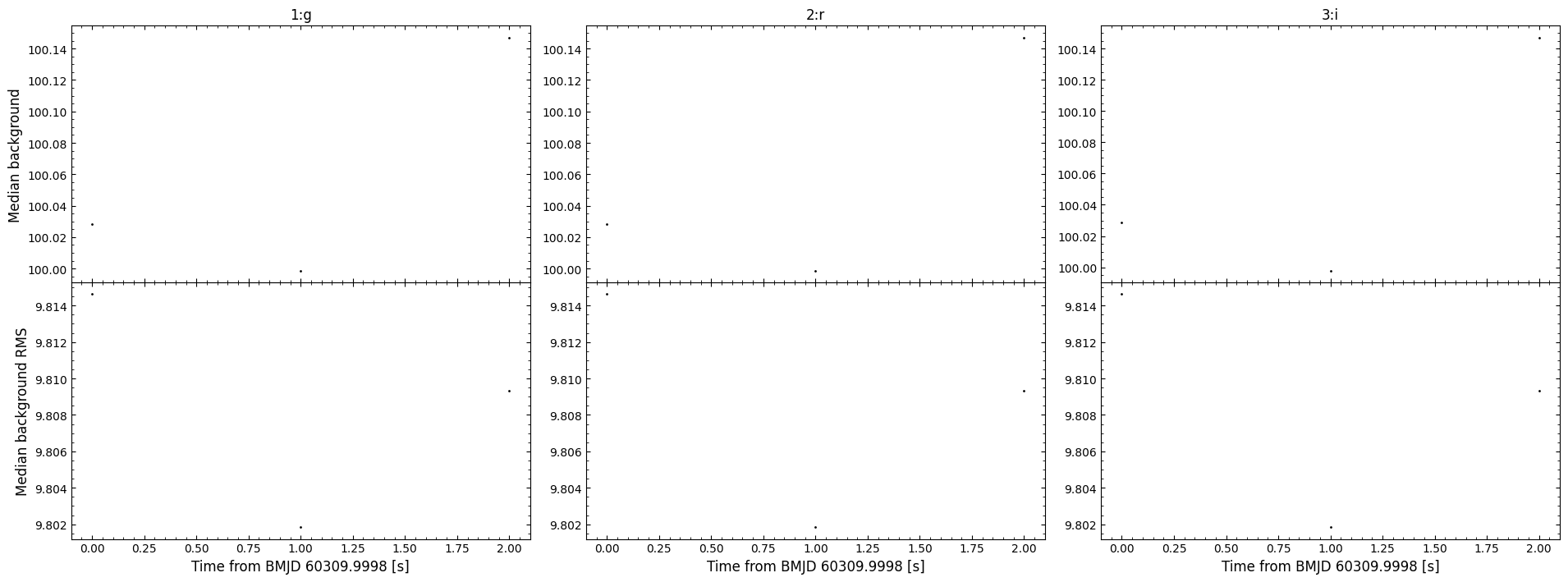
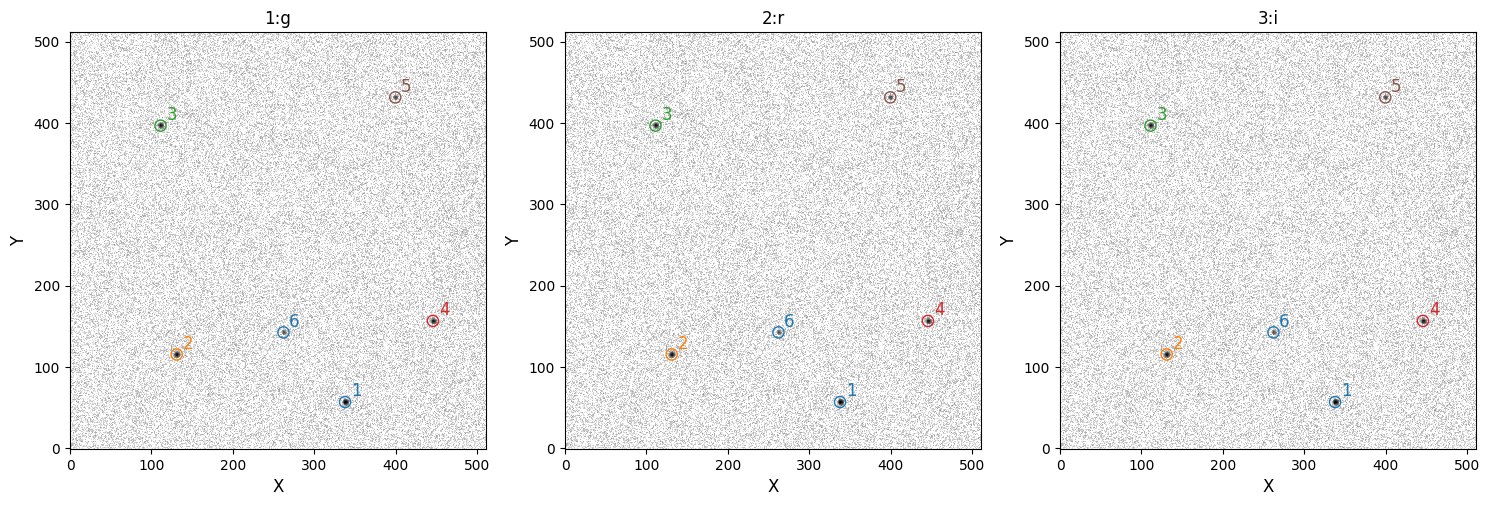
Unsurprisingly, the default source finder has also identified all six sources. Admittedly, this rather simple example does a poor job of demonstrating why defining a custom source finder may be useful, but hopefully it is clear how custom source finders can be implemented. For more information on defining custom source finders, I again refer to the excellent photutils documentation: https://photutils.readthedocs.io/en/stable/user_guide/segmentation.html. Note that opticam requires that
source finder routines return an astropy.table.QTable instance when called, while photutils returns a SourceCatalog instance. To convert the SourceCatalog to a QTable, you can use the `to_table() <https://photutils.readthedocs.io/en/stable/api/photutils.segmentation.SourceCatalog.html#photutils.segmentation.SourceCatalog.to_table>`__ method.
That concludes the source finder tutorial for opticam!